 Spain
Spain Mexico
 Brazil
 Poland
 Taiwan
 Philippines
 South Korea
The essentials
- A Visa or Mastercard logo does not establish Apple Pay or Google Wallet support.
- A virtual card and a mobile-wallet payment token serve different purposes.
- Separate a failed card setup from a phone problem or a declined purchase.
Check the complete support combination
Check your issuer’s page for the exact card and market, then Apple’s issuer list or Google’s country-specific payment methods. A supported bank can still issue unsupported cards. Neither a contactless symbol on plastic nor successful online use proves that mobile tap-to-pay is enabled.
Next confirm a compatible device, supported country or region, current software and an appropriate screen lock. Google Wallet phone payments require NFC. Check smartwatch eligibility separately. Your preferred app language, travel destination and issuing country can be different; changing a language or region setting does not establish eligibility for an unsupported card.
Separate virtual cards from payment tokens
An issuer’s virtual card is a card account presented digitally, usually with details for online checkout. A physical card is a separate form of access that may have its own activation requirements. Wallet support must be confirmed for the version you hold; Crypto.com’s virtual-card documentation, for example, describes different wallet options by issuing market.
When an eligible card is provisioned, the mobile wallet uses a substitute payment identifier. Apple describes a device-specific account number; Google describes a virtual number for eligible in-store cards. This token is not cryptocurrency and does not move your crypto into Apple or Google. Keep issuer funding and conversion rules in mind when paying through the wallet.
Add the card and finish verification
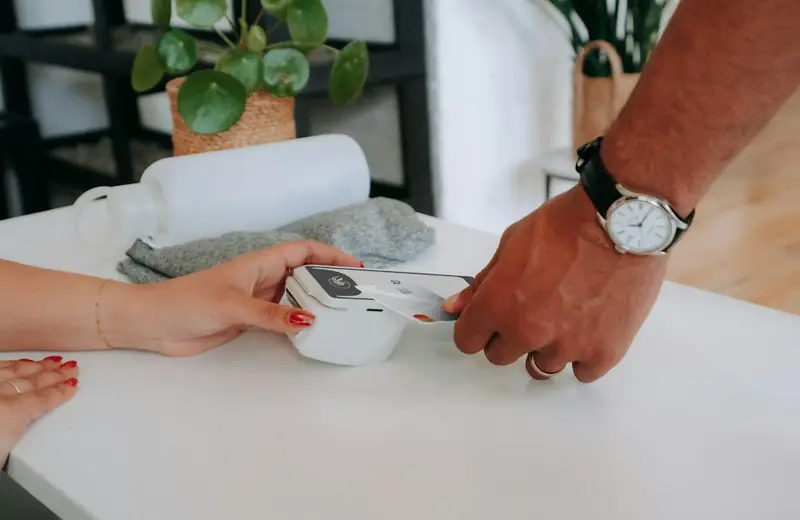
On iPhone, use the issuer’s Add to Apple Wallet option when available, or open Wallet, choose Add Card and follow the prompts. Complete any issuer verification. Apple Watch setup is a separate step through the Watch app’s Wallet & Apple Pay settings. Some markets require the issuer app; follow local instructions.
On Android, open Google Wallet, choose Add to Wallet, then Payment card, enter or scan the details and accept the issuer terms. Complete the offered verification method; an issuer-app Add to GPay option may also be available. Check that setup has finished for contactless payments rather than merely saving a card for online purchases.
Troubleshoot the stage that failed
If adding the card fails, check its status and the billing details held by the issuer. Keep the exact error wording. Ask issuer support about the wallet provisioning request when the error concerns approval, verification or a device limit; Apple and Google cannot simply override the issuer’s decision.
If setup succeeds but tapping fails, check the phone’s payment readiness, NFC and default wallet on Android, device authentication, and the terminal’s contactless capability. A purchase decline can instead concern available card funds or issuer restrictions. Record the amount, time and merchant so support can distinguish setup trouble from transaction authorization.
| What you see | Next check |
|---|---|
| Cannot add this card | Exact product support and issuer approval |
| Verification does not finish | Issuer contact details and offered verification route |
| Card added; phone will not tap | Device readiness, NFC and default wallet |
| Terminal receives payment but declines it | Issuer transaction record and available funds |
Test, then prepare for device changes
Test a small purchase before relying on the wallet. Verify which card was selected and compare the receipt with the issuer’s transaction record. Keep another accepted payment method. A mobile-wallet payment still follows the underlying card’s funding, exchange and spending conditions.
When replacing a phone or adding a watch, check setup on each device instead of assuming payment credentials transferred. If a device is lost, use the platform’s device-protection tools and contact the issuer about suspending the wallet token or card as appropriate. Never share a one-time verification code with someone who contacts you unexpectedly.
Official sources
An editorial guide based on official materials, not a report of a payment test or an individual approval.
Official sources · 11
Apple — Countries and regions that support Apple Pay ↗Apple — Participating banks in Africa, Europe and the Middle East ↗
Google Wallet — Find supported payment methods ↗
Crypto.com — Virtual Card ↗
Apple — Apple Pay security and privacy overview ↗
Google Wallet — Keep your payment info safe ↗
Apple — Set up Apple Pay ↗
Google Wallet — Add a debit or credit card ↗
Apple — If you cannot add a card to Apple Wallet ↗
Google Wallet — Fix problems with tap to pay transactions ↗
Google Wallet — Tap to pay with your phone ↗